Official ManualGetting Started · Five Checks
Shadowrocket Setup Guide
Import a Subscription and Connect for the First Time
Follow this order: add → choose a mode → connect → test → troubleshoot. First, get one existing server connection working; then check the rules in your configuration file.
This guide is for iPhone and iPad. The official App Store screenshots below can help you identify each screen; field names and options may vary in the current app. Keep sensitive addresses, passwords, and QR codes on your own device.
STEP 01 / ADD SERVER
Add Server: Add Existing Connection Details
First, identify what you have: a subscription URL, a single server share link, or server details that must be entered field by field.
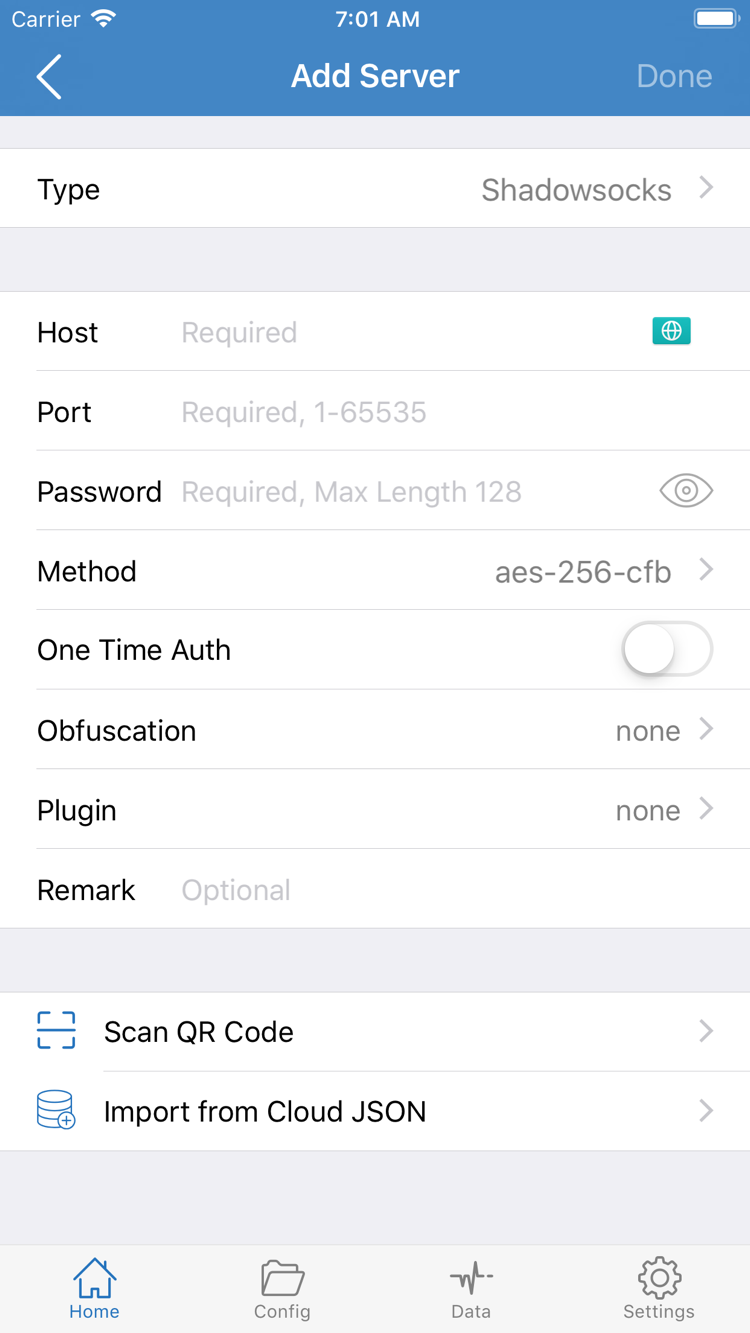
Open Shadowrocket and go to Home, then tap Add Server. You can also use the add button on the screen to open the same page. Don't choose an import method based only on how an address looks: a subscription URL retrieves a list of server details, while a single share link usually describes one server. Host, Port, Password, and other parameters must be entered for the matching Type. Check what kind of information you have first to avoid pasting a subscription URL into Host.
Have a Subscription? Use Subscribe
In Add Server, open Type and select Subscribe, then enter your complete subscription URL in the appropriate field. Keep any parameters at the end of the URL. Check for spaces, line breaks, or extra text at the beginning or end. You can add a note to distinguish subscriptions; it only helps you identify them locally and doesn't change the remote subscription. Save, wait for the app to retrieve the content, then return to Home to check the result.
For example, https://example.com/sub?token=xxxx shows the format of a URL only; it won't work as a real connection. Use a URL you already have. If you see a subscription name after saving but no server to select, first check whether the subscription content was retrieved successfully. Don't keep adding the same URL. The subscription URL must be reachable over your current network. Toggling the connection switch repeatedly won't populate the server list if the import hasn't completed.
Have Server Details? Choose Type, Then Fill In the Fields
To add a server manually, start by choosing the Type that matches your details. Then enter Host and Port: Host is the server's domain name or address, and Port is the port specified by the server. In the screenshot's example, also check Password and Method. Fields vary by protocol, so don't assume this set applies to every protocol. For example, a connection that requires a UUID, TLS, or transport settings needs those fields checked against your existing details.
Don't change Method based on guesswork or enable an option just because it looks more secure. The port, authentication details, and transport settings must match. Even if the app lets you save, that doesn't mean the server will accept the settings. Compare each field with your source details, then save and return to Home.
QR Codes and Single Server Links
If you have a QR code, use Scan QR Code and grant camera access when prompted. Check the type, address, and port after scanning, then save. To import from the clipboard, copy only the complete share link and use the corresponding import option in the app. If prompted to allow pasting, confirm if needed. Import from Cloud JSON is for compatible files, not a general-purpose way to add any subscription URL.
STEP 02 / GLOBAL ROUTING
Global Routing: Choose How Connections Are Handled
These three modes determine whether connections follow rules, go through the proxy, or connect directly; they don't add servers.
After confirming that the server appears on Home, open Global Routing. Start by learning the three common modes: Config, Proxy, and Direct. This setting changes how connections are handled, not the server details. Switching modes won't fix an incorrect password or retrieve missing subscription content.
Config: Follow the Active Configuration File's Rules
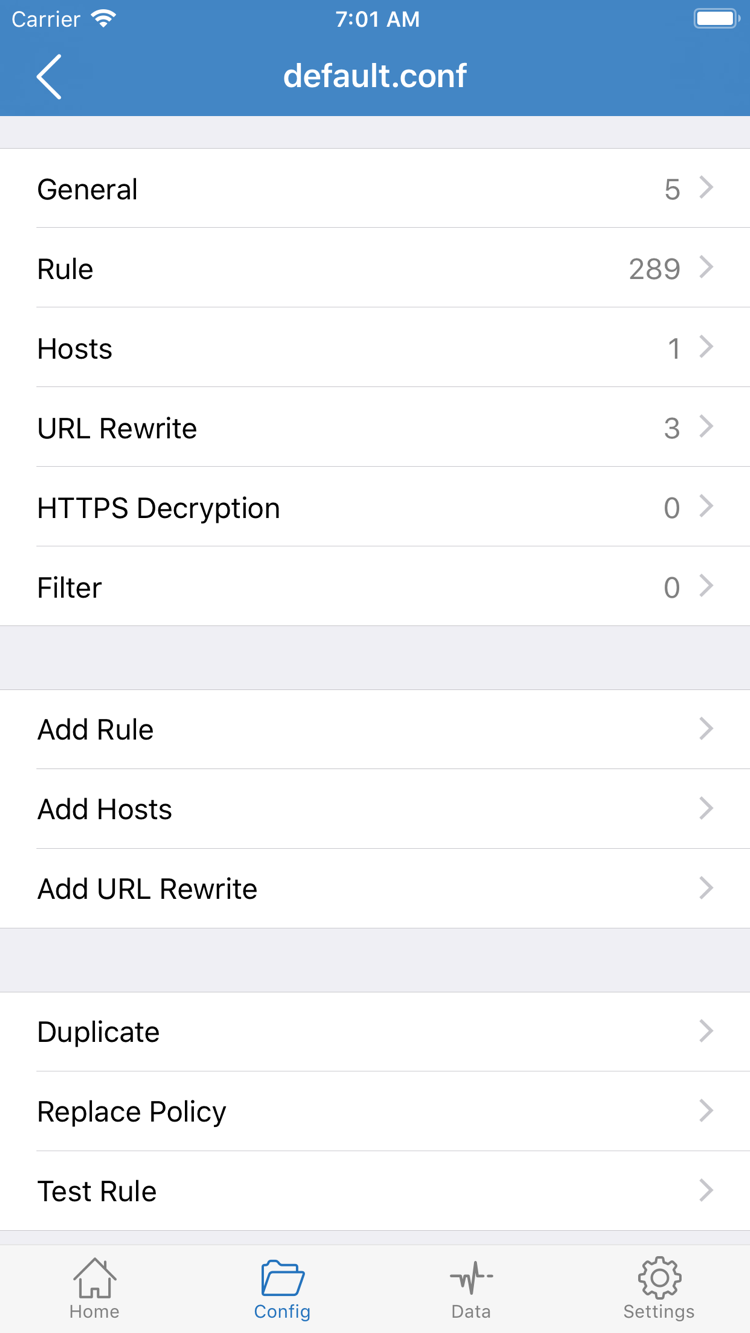
With Config selected, connections are handled according to the active configuration file's rules. Some destinations may use PROXY, others may use DIRECT, and some may match REJECT. So if some requests connect directly after you turn on the connection, that doesn't necessarily mean the setting failed; check which rule matches each destination. Open Config to confirm which configuration file is active, not just that a file appears in the list.
The configuration editor in the screenshot has sections such as General, Rule, and Hosts. View rules under Rule; use Add Rule only when you need to add one. You don't need to change every section for your first connection. In particular, don't change URL Rewrite or HTTPS Decryption just to test a basic connection. Keep a configuration with a known purpose and learn its rules one at a time after the connection works.
DOMAIN-SUFFIX,example.com,PROXY
FINAL,DIRECTProxy: Check That the Server Works First
With Proxy selected, connections the app can handle are sent through the proxy. This mode can reduce rule-related variables during initial troubleshooting: select one server and test the same destination. If it works in Proxy but fails in Config, check the configuration file and rule matches first instead of deleting the subscription. Proxy doesn't guarantee that every app or all system traffic will follow the same path, so check what happens to the actual request.
Direct: Connect to the Destination Directly
With Direct selected, connections go straight to the destination without being forwarded through a server. Use it as a comparison: can the destination open on your current network? If it works in Direct but fails in Proxy, check the selected server and its settings. Direct doesn't automatically pick the fastest server. After choosing a mode, return to Home to select a server and turn on the connection.
STEP 03 / HOME
Home: Select a Server and Turn On the Switch
Choose the server to use first, then authorize the VPN configuration with the system.
Return to Home and find the server you just added in the SERVER section. Tap the selection circle beside it and confirm that the indicator appears next to the correct server. Opening an entry's edit screen is not the same as selecting it as the current server. If the list has several entries, select just one for the initial check and note its label so you can keep the same conditions when testing again.
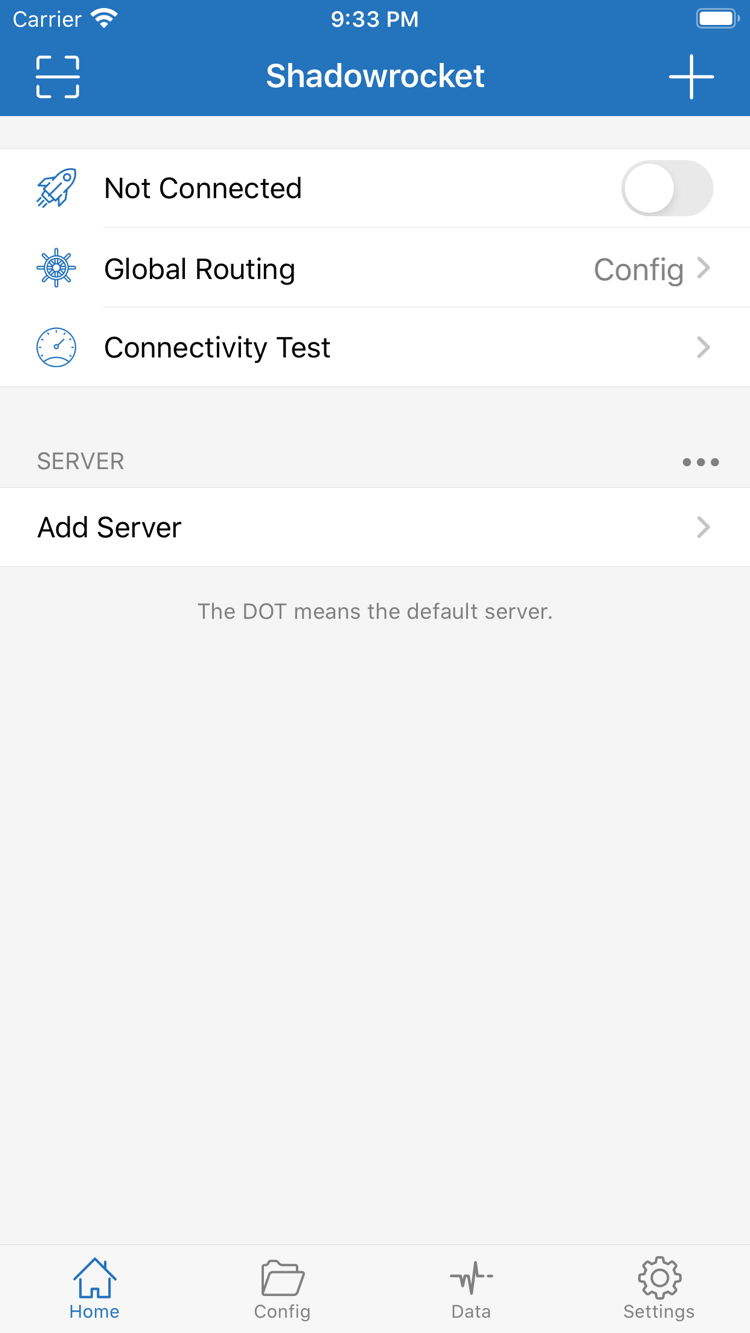
Check Global Routing again. To test a basic connection, start with Proxy as described in the previous step. If you have a known configuration file and want to use its rules, select Config instead. Then turn on the connection switch at the top of Home. The screen may show Not Connected before connecting. Watch for the switch and connection status to change; don't tap it once and immediately switch to another app.
The First Time the VPN Configuration Prompt Appears
The first connection may trigger a system prompt to add a VPN configuration. This is system authorization that lets Shadowrocket establish a network connection on your device, not a prompt to import a subscription. Make sure the request is for Shadowrocket, then follow the system steps to allow it and complete the required authentication. If you canceled the prompt earlier, return to the app and start the connection again. Don't keep tapping the switch while the system prompt is still open.
After authorization, return to Home and check whether the connection switch stays on. The system VPN status means the network configuration is enabled; it doesn't guarantee that the remote server is working. A wrong password, unreachable port, or misdirected rule may only become apparent when you make a request. For this step, confirm that you selected an entry, allowed the configuration, and kept the connection on. Test actual access in the next step.
Keep Your Settings As They Are After Connecting
Don't change the server, edit rules, and switch networks all at once just after turning on the connection. Test once with the current settings; if it fails, change one variable at a time. Follow the same steps on iPad; the layout may differ on your device. Your app purchase and server details are separate. Even after restoring the app on another device, check whether your subscription or server details have been added there.
STEP 04 / CONNECTIVITY TEST
Connectivity Test: Check the Actual Request
Check these separately: the switch is on, the test passes, and the destination opens.
Keep the connection on, run Connectivity Test from Home, and wait for the result. The test can help assess reachability to its test destination, but it doesn't replace checking the destination you actually use. In Config, rules may also affect the test request. One successful result doesn't mean every server in the list works, and one failure doesn't prove that all requests fail.
Check Again with the Destination You Actually Need
Open a browser, visit the destination you want to check, and reload the page. If possible, make a new request so cached content isn't mistaken for a successful connection. Return to Shadowrocket and review available request logs, connection details, or traffic changes to see what happened. A change in traffic only shows that activity occurred; it doesn't prove that the request used the expected routing. Check separately whether the destination opens and whether the correct rule matched.
Record these three details in the same order each time: the selected server, the Global Routing mode, and the result for the same destination. If Proxy works but Config fails, check the configuration file first. If Direct works but Proxy fails, check the server details. If both fail, first confirm that the Wi-Fi or cellular network itself has internet access. Separating the network, server, and rules makes it easier to identify the cause without repeating tests based on a single error message.
A Latency Test Doesn't Prove the Connection Works
Latency results in the server list depend on Test Method, the test destination, and your current network. A lower number doesn't guarantee faster real-world access, and a timeout needs to be interpreted in light of the test method. First check whether the actual request succeeds, then compare the servers you already have. You don't need to keep sorting servers to chase a particular number during initial setup. Don't compare results from different network conditions as if they were equivalent.
Once the connection works in Proxy, switch back to the Config you intend to use and test the same destination again. This checks whether the rules behave as expected. If the result changes only when you switch modes, keep the existing server details and check the rules; reimporting the subscription usually isn't the first thing to try.
STEP 05 / SETTINGS & DIAGNOSTICS
Settings: Troubleshoot One Issue at a Time
Start with the earliest incomplete step. After each change, test the same destination again.
The Subscription Is Saved, but No Servers Appear
Return to the subscription details and check that the URL is complete and reachable on your current network. Parameters in a subscription URL may identify your access, so missing part of the URL can prevent retrieval. Distinguish between saving a subscription entry and successfully retrieving its server content: the first only saves it locally. If your existing details include an expiry date or usage status, check your own records. Don't use an ordinary webpage URL as a subscription or treat the contents of an error page as server details.
Correct the existing entry and fetch its content again to avoid adding duplicates. To check the returned format, update behavior, or how to organize multiple subscriptions, see the Subscription and Server Management Manual. Then return to Step 3 to connect.
The Connection Switch Won't Stay On
Check whether a system VPN configuration prompt is still waiting for your response and whether device authentication is complete. If another VPN configuration is enabled in system network settings, confirm which one is active before trying again in Shadowrocket. On a managed device, check whether device management policies restrict VPN configurations. First resolve whether the system configuration can be enabled; there's no need to change the server password or Rule yet.
The Switch Is On, but Requests Time Out
Return to Home and check the selection indicator to make sure you're testing the intended server, not an old entry. For a manually added server, check Type, Host, Port, authentication details, and any TLS or transport options required by your source details. For a subscription entry, try fetching the existing subscription again before editing a large number of remotely managed fields. Then test the same destination in Proxy to see whether the issue also occurs without rule-based routing.
If you want to try another server you already have, keep the original entry and change only the selected server. If needed, compare Wi-Fi with cellular once, noting the network change. Changing the network and server at the same time makes it hard to tell what caused the result.
Proxy Works, but Some Destinations Fail in Config
Check which Config file is active and the order of its Rule entries. Confirm whether the destination is routed to the expected PROXY or DIRECT. Domain and address rules match differently, and the resolved connection address may also affect the result. You don't need to rewrite the entire configuration to troubleshoot the first time. Find the rules relevant to the failing destination, then check the fallback rules. For rule keywords, matching scope, and configuration management, see the configuration sections in the subscription manual.
Test Results Don't Match What You See in the Browser
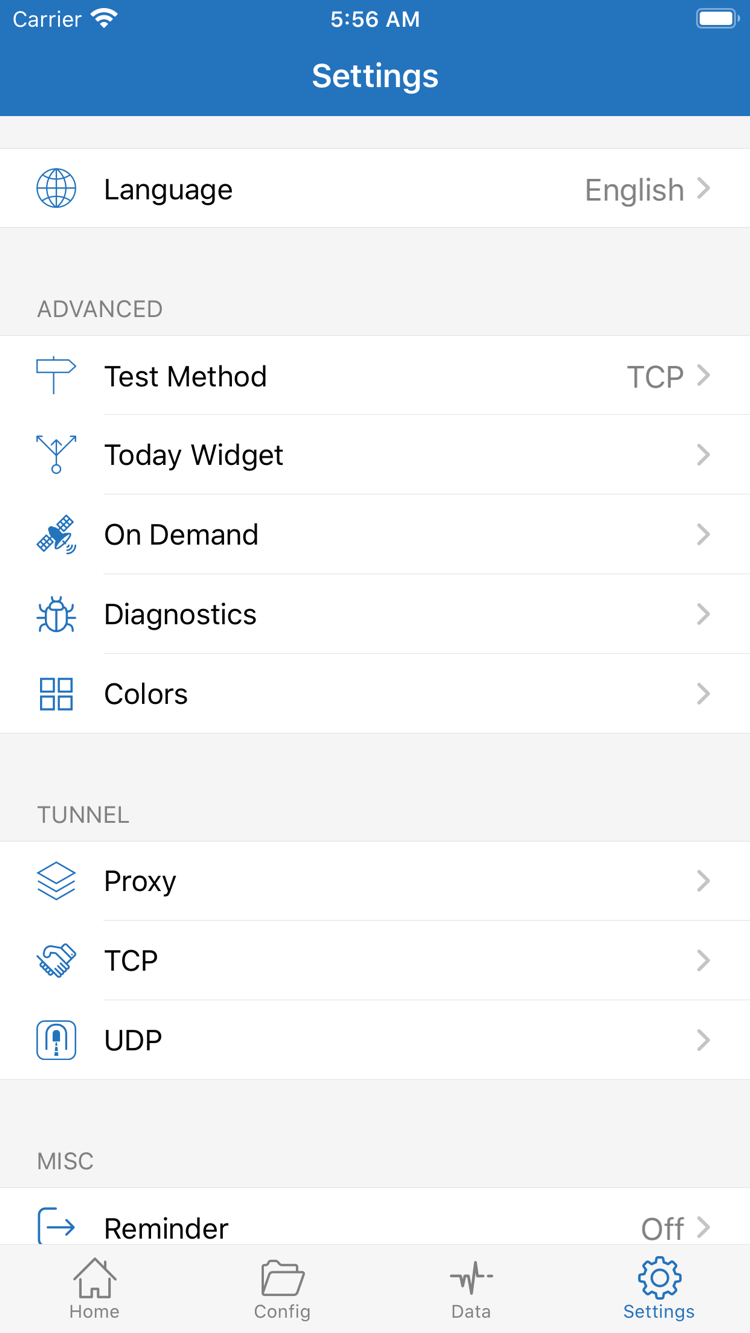
Open Settings and check Test Method to confirm how the test is run, then compare it with the actual access result in Step 4. Diagnostics can provide more information, but interpret the logs in context: note the test time, destination, and error details rather than relying on a single word. Before sharing diagnostic information, remove subscription URLs, authentication parameters, and other personal details. Never post a complete subscription URL as public troubleshooting material.
On Demand affects connections made under specified conditions. If the connection status changes with the network, check whether you configured any such conditions. Don't change Proxy, TCP, or UDP settings before understanding what they do. First establish a repeatable result with a manual connection, then configure automatic connection behavior. Language and Today Widget in Settings won't fix server authentication errors.