Official ManualApp Store Purchase and Purchase Restoration
Shadowrocket Download
Verify the App Store Listing
Shadowrocket · Paid AppDownload on the App Store
A one-time purchase, available only on the App Store. Check the storefront region and product details, then confirm purchase and device compatibility.
- Developer: Shadow Launch Technology Limited
- App ID: 932747118
- $2.99 one-time purchase · US storefront reference price
- Universal for iPhone and iPad
Check the App Store listing for the actual price, universal purchase availability, and system requirements.
STORE / ACCOUNT REGION
Store availability and account region
Whether you can view and purchase the app depends on the country or region associated with your Apple ID and the app's availability on that storefront.
Shadowrocket isn't available on the mainland China storefront. If search returns no results, check the region for the account currently used by the App Store instead of repeatedly changing your search terms. Verify the product using its English name, developer name, and app ID—not just a localized name in search results.
The button on this page links to the US storefront. In the URL, us identifies the web storefront; it doesn't change your Apple ID region or payment terms. Viewing the product page in a browser doesn't mean your current account can complete the purchase on a device. Follow the message shown by the App Store.
If the page says the app isn't available in your country or region, stop and check your account before proceeding. Device language, current location, and browser language don't determine your App Store region. When using multiple devices, check the Media & Purchases account on each one; it may differ from the account used to sign in to the device.
You may need to verify your identity when viewing your account. This step lets you access purchase account details. Menu labels and locations can vary slightly by system version; look for account details under Media & Purchases rather than the device's regional format settings. Read the prompts and consider how a change may affect existing purchases and services. This manual explains where to find the settings but can't guarantee a region change will be possible.
VERIFY / THREE CHECKS
Verify the developer, icon, and app ID
A similar name doesn't mean it's the same app. Before confirming a purchase, check all three details on the product page.
- Check the developer. The developer or provider listed on the product page should be Shadow Launch Technology Limited. The name is long, so expand the relevant details and read it in full. Don't rely on the first word or a search-result summary.
- Check the official icon. Shadowrocket's official icon is a rocket on a white background with a blue-purple outline, matching the official icon used on this site. A similar graphic is only a clue; also verify the developer and app ID instead of relying on color alone.
- Check the app ID. Shadowrocket's app ID is
932747118, and the product page URL ends inid932747118. The app ID identifies the specific App Store listing; a title containing words like “official” is not a substitute.
Shadowrocket
Official icon reference · App ID 932747118
Search results may include apps with similar names, similar icons, or extra descriptive words in their titles. Don't judge by ranking, promotional copy, or screenshot count. Return to the product link on this page, verify all three details on the listing, then check the app name and price in the purchase confirmation.
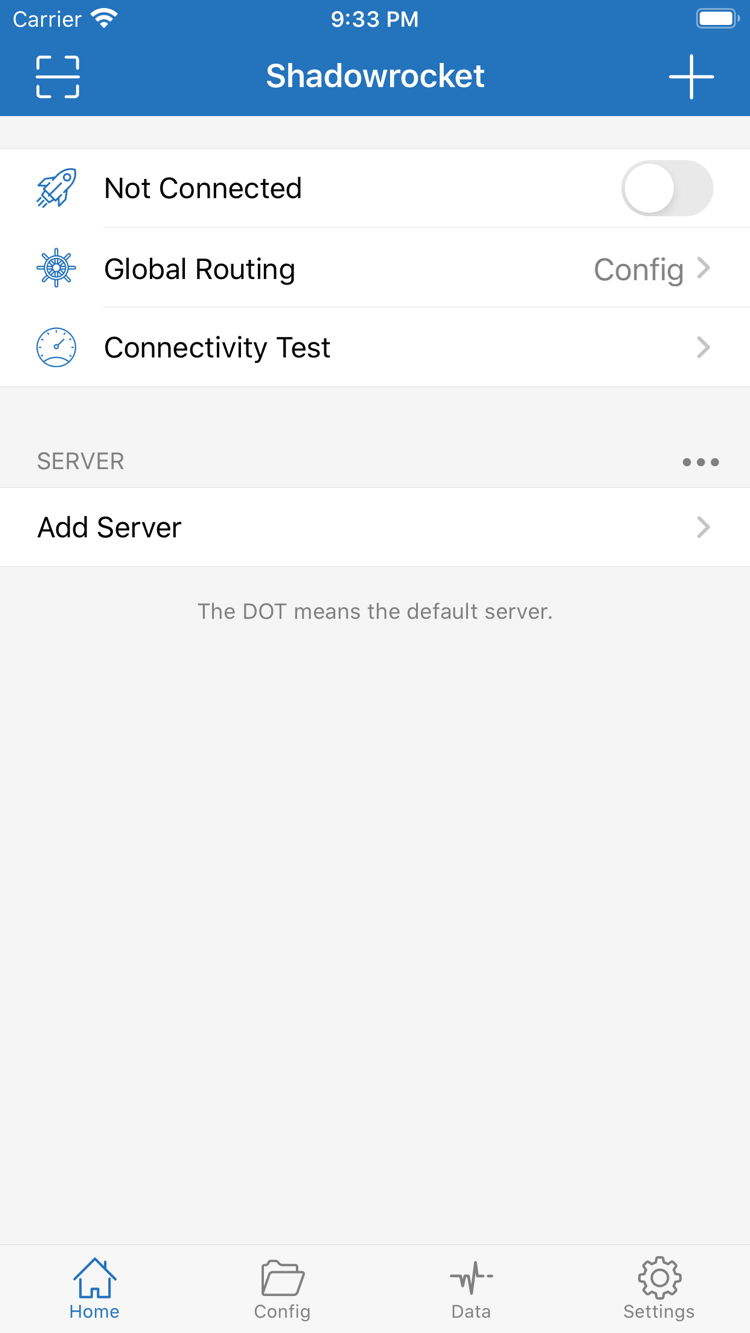
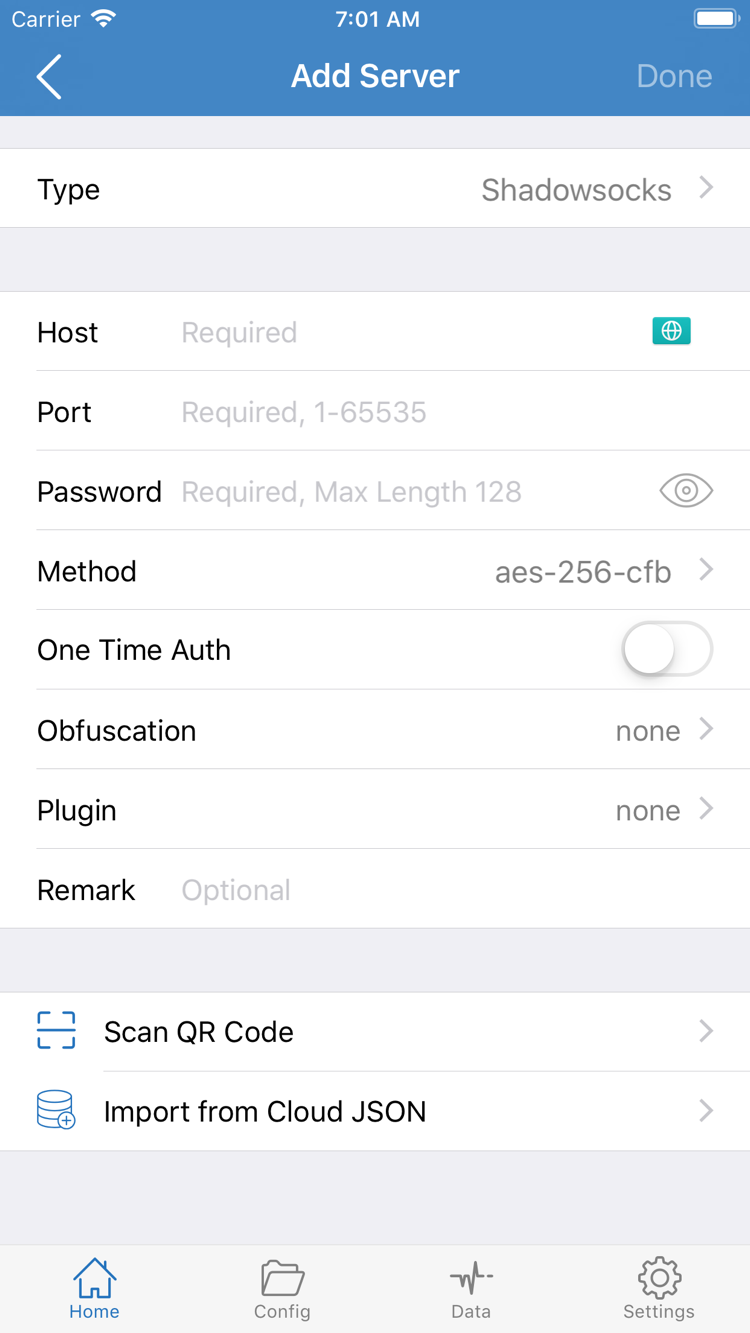
The two images on the right are official App Store screenshots showing Home and Add Server. They illustrate common interface labels; they don't show live connection status. Server entries and field examples in the screenshots aren't included with the app purchase and shouldn't be copied as your connection details.
The interface may vary with device size and app updates, so screenshots can't replace checking the App Store listing. If the layout looks different on first launch, verify the product and field names first. Use the app on your device as the reference for feature locations.
IPHONE / FIRST OPEN
Buying and opening Shadowrocket on iPhone
Purchase Shadowrocket on the App Store first, then prepare your own subscription or server details.
Open the App Store link on your iPhone and verify the product details first. Then check the system requirements under Compatibility. Refer to the App Store listing for system requirements; don't assume installation is supported based only on your device model. Make sure your account can make purchases, your payment details are valid, and you have enough storage, then follow the App Store purchase confirmation steps.
A price on the button means the current storefront is prompting you to confirm a purchase. A cloud icon usually means the account has previously acquired the app; Open means it's already installed. Check your purchase history alongside the button status. If payment fails or verification is requested, resolve the issue shown before trying again.
After first launch, Not Connected on Home means no connection has been established. Buying the app gives you the right to use the client; it doesn't provide a usable server. Import your own subscription or enter your server details using Add Server, then select the entry you want to use. Match the fields and protocol to your own details; don't copy the screenshot examples.
When you'll be asked to authorize a VPN configuration
After preparing your server, turning on the connection may prompt the system to let Shadowrocket add a VPN configuration. This authorization allows the app to use the system's network connection features; it doesn't confirm that the connection works. Make sure the prompt follows an action you initiated, read it, and verify your identity as required. If you cancel, the app may not be able to connect; you can try again when you're ready.
After granting permission, return to Home and check the selected server and Global Routing. The configuration mode uses rules from Config; proxy mode uses Proxy; direct mode uses Direct. Before first use, decide how you want your configuration to work, then use Connectivity Test to check connectivity. An enabled switch alone doesn't mean setup is complete.
For import and first-connection steps, see the Getting Started guide. To organize multiple existing subscriptions, continue to the Subscription and Server Management Manual.
IPAD / PURCHASE RECORD
Installing on iPad and other Apple devices
Check your purchase history under the same Apple ID, then verify compatibility with the device.
You can use the same Apple ID purchase history to get Shadowrocket on iPhone and iPad. After purchasing once, open Account and Purchased in the App Store on another compatible device, find the app, and download it again. Check the App Store listing for system requirements and whether the purchase is universal. If a price still appears, make sure the store is signed in with the original purchase account.
An iPad's larger display may change the layout of lists, editing areas, and navigation compared with an iPhone, but interface labels such as Home, Add Server, Config, and Settings remain useful reference points. Look for the named controls rather than relying on their position in a screenshot. The layout may also change between landscape and portrait.
Restoring a purchase doesn't restore device configuration. After installing Shadowrocket on iPad, check whether your own subscription has been imported, a default server is selected, and the connection switch and system authorization are set up. Don't assume subscriptions, rule files, or connection status will sync from another device when you restore your purchase. Before transferring data, confirm what's included in the backup on the original device, then check each item on the new one.
Mac, Apple TV, and Apple Vision
The compatibility section of the same App Store listing includes Mac, Apple TV, and Apple Vision. To use Shadowrocket on one of these devices, find the same listing in that device's App Store. Check the listing for system requirements and whether the purchase is universal. The first-connection steps on this page focus on iPhone and iPad; for other devices, follow the interface shown on the device.
A family member using a different account is not the same as using one account across multiple devices. To check whether Family Sharing applies, review the relevant App Store listing details and account settings. Don't assume another account has purchase access just because the app is installed on one device.
RESTORE / TWO SEPARATE TASKS
New device or reinstall: restore the app, then restore your configuration
Purchase history helps you get the app again; subscriptions and server details need to be checked separately.
Restore Shadowrocket from your purchase history
On the new device, make sure Media & Purchases is signed in with the Apple ID used for the original purchase. Then open App Store → Account → Purchased and find Shadowrocket. On some systems, this list may appear under Apps or My Apps; look for the apps previously acquired by that account. Confirm the developer, then tap the cloud icon to download it again. You usually won't need to pay again.
If the app isn't in the list, check the purchase account before paying again. The account used for cloud services may differ from the one used for Media & Purchases. Also check your purchase history, hidden purchases, and current storefront availability. Use your purchase history to confirm payment; a past app icon on the Home Screen doesn't prove which account owns the purchase.
If the product page still shows a price, pause before buying and check the purchase history on the original account. For order, payment, or account access issues, follow the relevant steps in the App Store prompt. A change in account region may affect storefront availability; past purchase history doesn't replace checking the current storefront and device.
Restore your connection details
After reinstalling the app, check Home for your server group and Config for the configuration you want to use. If they're empty, import your saved subscription or server details. Get your subscription link from your own service provider. If you have a backup, check what it contains; a backup of server entries alone may not include a complete rule configuration.
A successful subscription update only means the details were retrieved; it doesn't confirm that every server works. After importing, select the server you want, check Global Routing, turn on the connection, and run Connectivity Test. Keep the working details on your old device until migration is complete. Store anything containing access credentials securely, and don't show complete links in public screenshots or support requests.
PRICE / ONE-TIME PURCHASE
Price, one-time purchase, and what's included
You buy the Shadowrocket client, not a connection service.
Shadowrocket is a paid commercial app. The US storefront reference price is $2.99 as a one-time purchase. Prices appear in local currency on each storefront; check the App Store listing and purchase confirmation for the final amount and terms. Prices shown in different currencies can't be compared by number alone. Before buying, check the price for your account rather than treating the reference price here as the amount charged everywhere.
A one-time payment covers the client; it isn't a recurring client subscription. Get future updates through the App Store using automatic app updates or by checking for updates in your store account. For update availability and device compatibility, refer to the App Store listing and prompts at the time; this page doesn't replace current system requirements with a fixed minimum.
After purchase, the app can save server details, import existing subscriptions, apply rule-based routing, and test connections, but these features don't provide a usable server. The validity period, data limits, and access credentials for any existing service are managed separately from your App Store purchase. An expired subscription or failed connection doesn't mean the client purchase has stopped working.
Before paying, check the product details, device compatibility, and purchase account. After paying, configure the app with your own details. For issues during the purchase process, start with your order and account prompts; for issues during use, note the test results and check your existing details. Separating purchase questions from technical troubleshooting makes it easier to decide what to do next.
PURCHASE / QUICK ANSWERS
Shadowrocket download and purchase FAQs
Why can't I find Shadowrocket on the App Store?
Shadowrocket isn't available on the mainland China storefront. App Store content depends on the country or region associated with your Apple ID; the us in a web link doesn't change your account region. Check Settings → Apple ID → Media & Purchases → View Account → Country/Region, then review availability on the product page.
The product page opens, but the download won't complete. What should I check?
Note the exact App Store message, then check your account region, device compatibility, available storage, network connection, and payment status. Refer to the App Store listing for system requirements. Repeatedly tapping Buy won't resolve account or payment restrictions.
Do I have to pay again after getting a new device or reinstalling the app?
On the App Store, sign in with the Apple ID used for the original purchase, then find Shadowrocket under Account → Purchased and download it again. You usually won't need to pay again. If a price still appears, check which account is used for Media & Purchases and review your purchase history. After restoring the app, you'll still need to import your own subscription or server details.
I bought Shadowrocket on iPhone. Can I install it on iPad too?
You can use the same Apple ID purchase history to get Shadowrocket on iPhone and iPad. Find it under Purchased in the iPad App Store. Check the App Store listing for system requirements and whether the purchase is universal; verify configuration and connection status separately on each device.
Where can I get Shadowrocket for Mac, Apple TV, or Apple Vision?
The compatibility section of the same App Store listing includes Mac, Apple TV, and Apple Vision. Check the App Store on your target device. Refer to the listing for system requirements and whether the purchase is universal.
How do I follow the guide if the app is in English?
This manual keeps interface labels in English: Home shows servers and connection status, Add Server lets you add a server, Global Routing selects how traffic is handled, and Connectivity Test checks connectivity. Match these labels to the official screenshots, and use the app on your device as the reference for its layout.